Android File Transfer for Mac — USB & Wi-Fi, fast & free.
DroidMac lets you transfer files and entire folders between Android and Mac over USB (MTP) or Wi-Fi — including SD card storage — with drag & drop and real-time progress. Download the Mac app and the Android companion — your modern Android File Transfer replacement.


macOS 14+ · Android 9+ · Free · No account needed
Mac & Android — transfer files between both, over USB or Wi-Fi
Download
Get DroidMac on Mac & Android
Install the Mac app to receive files. Add the Android companion to send files from your phone over USB or Wi-Fi. Both are free.
DroidMac for Mac
Version 1.0.2 · 1.5 MB
- macOS 14 (Sonoma) or later · ARM64
- USB (MTP) and Wi-Fi transfers
- Notarized by Apple
DroidMac for Android
Companion app · Free
- Android 9.0 or later
- Send files to Mac over Wi-Fi or USB
- No cloud, no account, no tracking
Free on Google Play
Notarized by Apple · Direct device-to-device transfers · Free forever
Why DroidMac
The best Android file transfer app for Mac
DroidMac replaces Google's discontinued Android File Transfer with a modern, native macOS experience. Transfer photos, videos, documents, and entire folders between any Android phone — Samsung, Pixel, OnePlus, Xiaomi — and your Mac using USB (MTP) or Wi-Fi, including SD card storage. No cloud, no account, no subscription.
USB (MTP) Transfer
Stable wired connection with full Android file system browsing. No software needed on your phone.
Wi-Fi Discovery
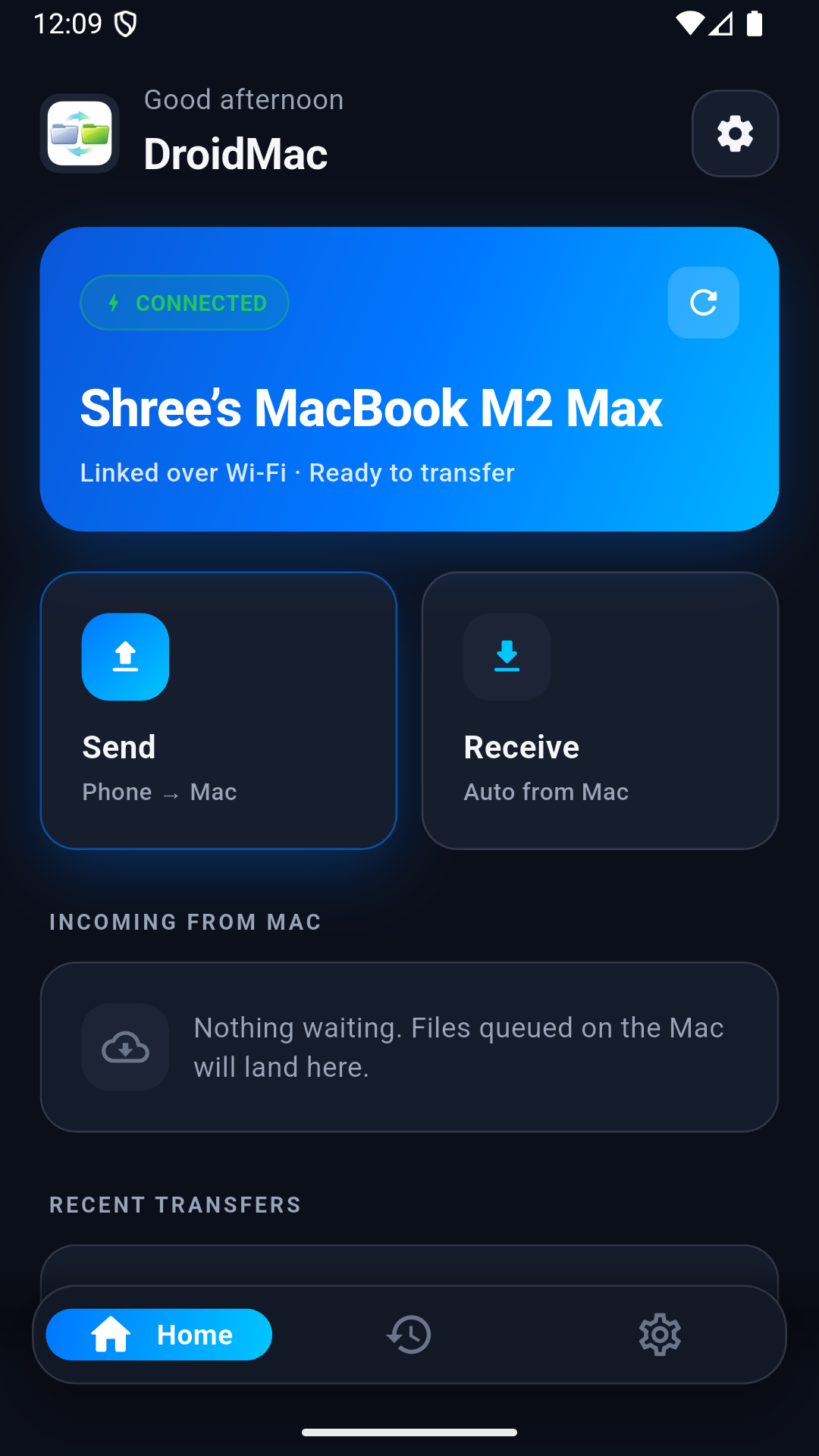
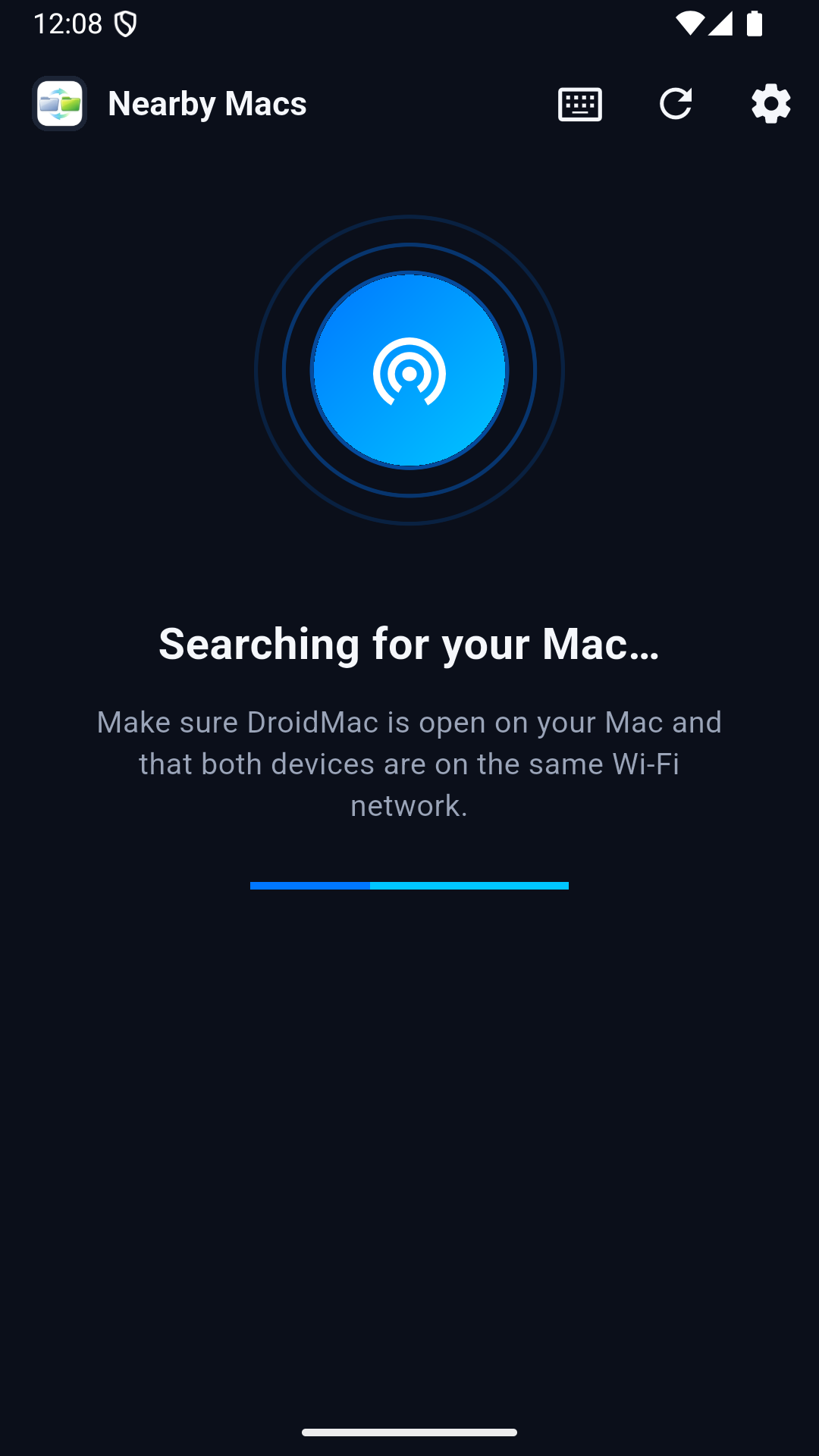
Connect wirelessly over your local network using Bonjour. Pair once, connect anytime without a cable.
Drag & Drop Folders
Transfer files and entire folders the macOS way — drag between Finder and Android in either direction.
Features
Android to Mac file transfer — built for power users, simple for everyone
Internal Storage & SD Card
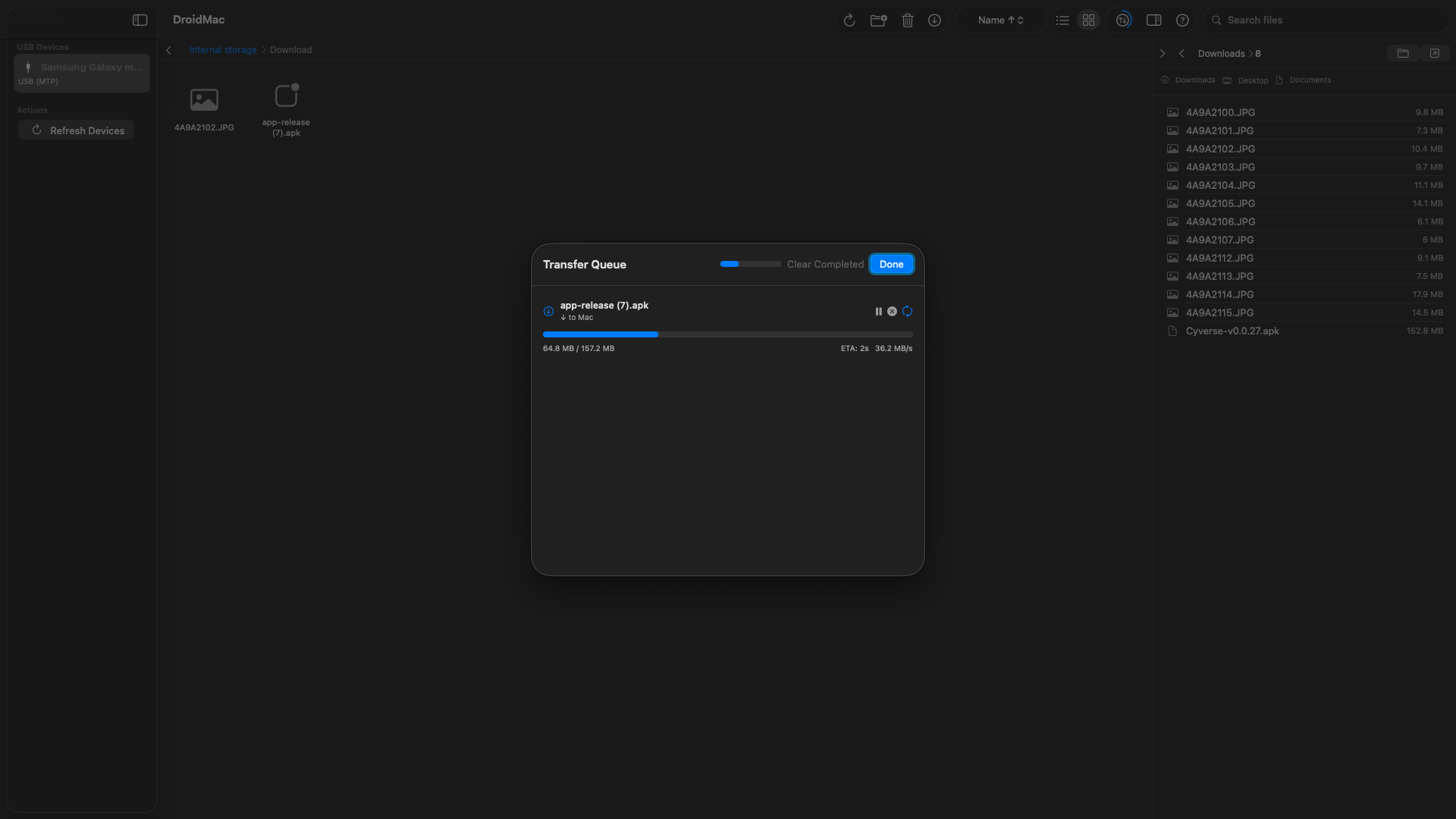
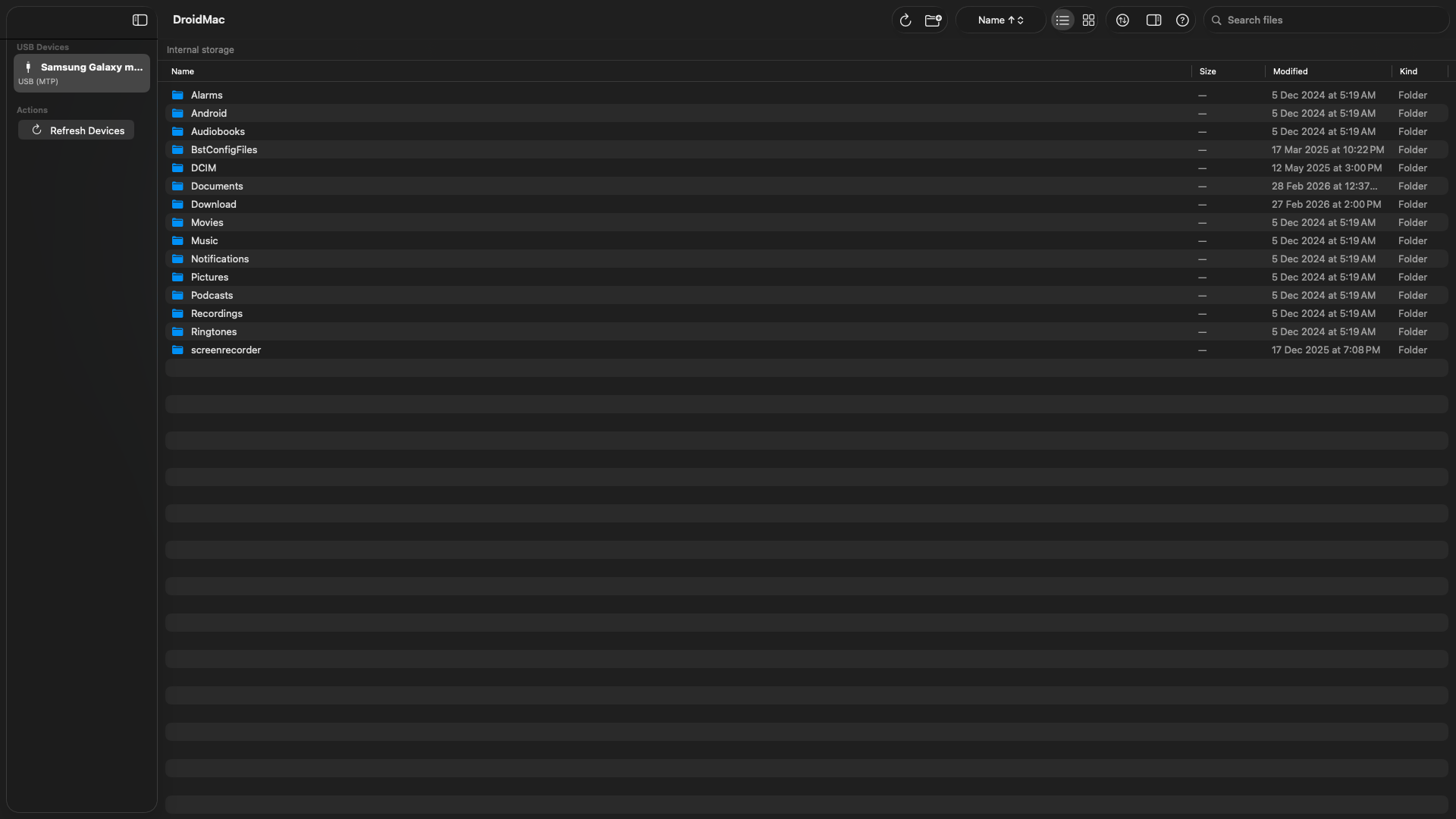
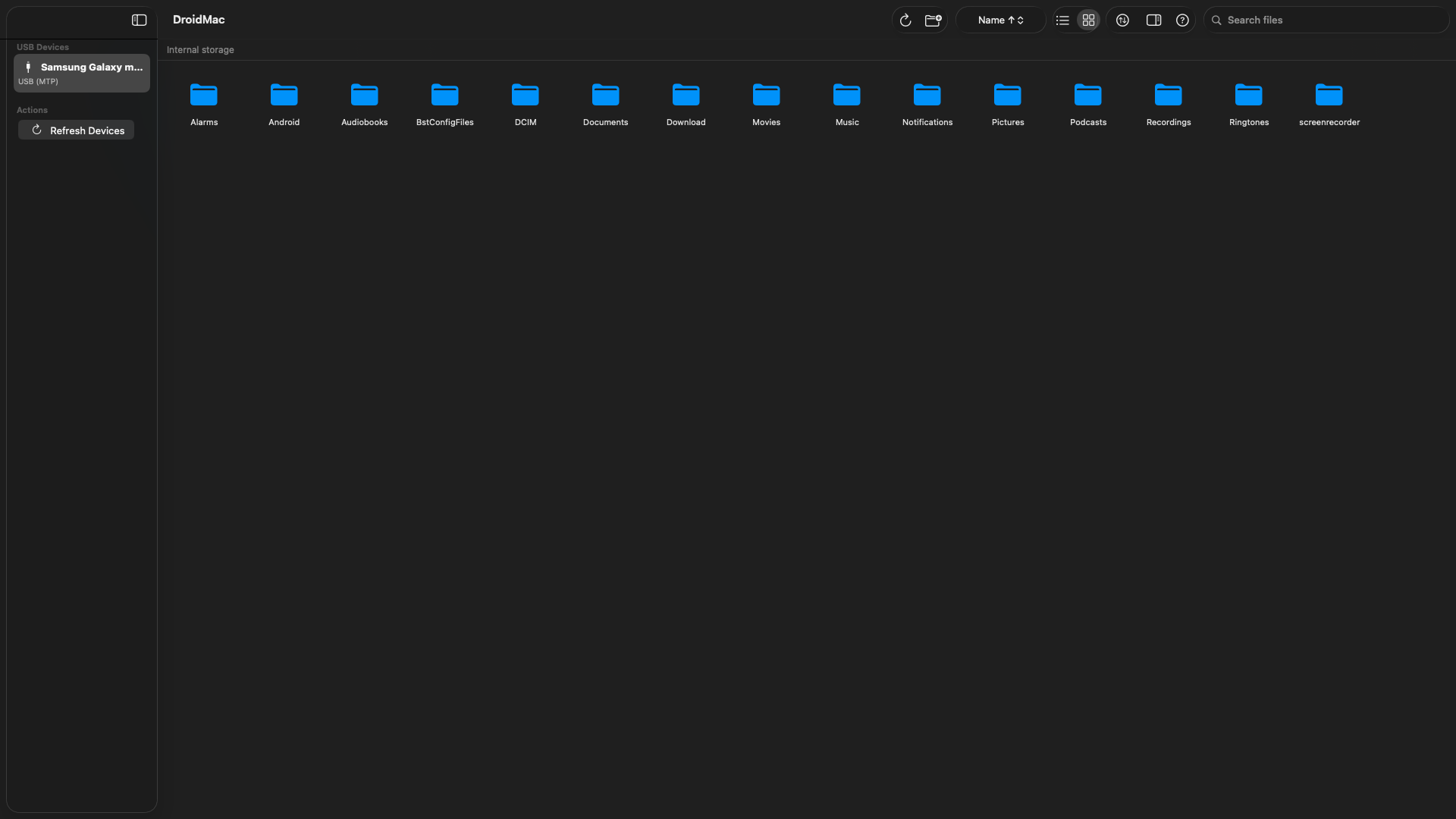
Browse the full Android file system over USB (MTP) or Wi-Fi — internal storage, removable SD card, and every accessible path.
Transfer Queue & Progress
Real-time progress rings, transfer speed, ETA, pause/resume/cancel, and retry on failure.
List & Grid Views
Switch between compact list view and visual grid view. Sort by name, size, or date.
Folder & File Management
Transfer entire folders in either direction — Mac to Android or Android to Mac — over USB or Wi-Fi. Create, rename, move, and delete items in place.
Theme & Font Size
Choose light or dark theme and adjust font size to match your workflow.
Secure Local Transfers
No cloud. No servers. No accounts. Files travel directly between your Mac and phone.
How It Works
How to transfer files from Android to Mac in three steps
Connect Your Device
Plug in via USB and select File Transfer (MTP) on your Android, or pair over Wi-Fi on your local network.
Browse Storage
DroidMac automatically detects your device and displays all accessible storage — internal memory and SD cards.
Transfer Files & Folders
Drag and drop files or entire folders between your Mac and Android device — in either direction. Monitor progress in the transfer queue.
Screenshots
DroidMac Screenshots — Android File Transfer on Mac & Android
macOS App
Android Companion App
Privacy First
Your Files Stay Yours.
DroidMac is built on a privacy-first architecture. Your files never leave your devices — no cloud, no servers, no middlemen.
Every transfer happens directly between your Mac and your Android device. Nothing passes through Codeaamy's infrastructure.
- No cloud upload — ever
- No file scanning or indexing
- Local device-to-device transfers only
- Pairing tokens encrypted in macOS Keychain
- No analytics or crash reporting
- No account required
Changelog
What's New
Every DroidMac release, at a glance. We ship improvements regularly.
Version 1.0.2
LatestJuly 2026- Copy & Paste: select multiple files and use ⌘C / ⌘V or right-click to copy between Android, Mac, and Finder.
- Folder support: browse, create, and transfer entire folders in both directions.
- SD card support: access and transfer files on external Android storage.
- Android 15 ready: added support for 16 KB memory page size devices.
- Fixed a file extension issue that could occur when downloading files.
Version 1.0.0
January 2026- Initial release of DroidMac.
- Transfer files between Android and Mac over USB (MTP) or Wi-Fi.
- Drag & drop, real-time transfer queue, and storage browsing.
- Notarized by Apple. No cloud, no account, no tracking.
FAQ
Frequently Asked Questions
DroidMac is a free Android file transfer app for Mac. It lets you transfer files between your Android phone and Mac using USB (MTP) or Wi-Fi. Simply connect your Android device, browse its file system, and drag & drop files — just like working with any folder on your Mac.
Yes. Google's Android File Transfer app for Mac has been discontinued and no longer works reliably on modern macOS. DroidMac is a modern, actively maintained alternative that supports both USB (MTP) and Wi-Fi transfers, with drag & drop, real-time progress tracking, and full file management.
Install DroidMac on your Mac and the DroidMac Companion app on your Android phone. Make sure both devices are on the same Wi-Fi network. Open both apps and they will discover each other automatically via Bonjour. You can then send files from your phone to Mac or from Mac to your phone wirelessly.
Ensure you are using a USB cable that supports data transfer (not charge-only). On your Android device, pull down the notification shade and tap the USB notification, then select File Transfer (MTP). Try a different USB port on your Mac. If the device still isn’t detected, try unlocking your phone and accepting any trust prompt.
DroidMac works with all Android phones and tablets that support MTP (Media Transfer Protocol), including Samsung Galaxy, Google Pixel, OnePlus, Xiaomi, Oppo, Vivo, Motorola, and more. Any Android device running Android 9.0 or later is compatible.
Make sure both your Mac and Android device are connected to the same Wi-Fi network. On your Mac, allow DroidMac to access your Local Network when prompted in System Settings → Privacy & Security → Local Network. Ensure the companion app is running and advertising on your Android device.
No. DroidMac transfers files directly between your Mac and Android device over USB or your local Wi-Fi network. No file content is ever sent to any server or third-party service. Your files are entirely under your control — private and secure.
DroidMac requires macOS 14 (Sonoma) or later, including macOS 15 Sequoia. It is optimized for Apple Silicon (ARM64) Macs including MacBook Air, MacBook Pro, Mac mini, Mac Studio, and Mac Pro with M-series chips.
Yes. DroidMac makes it easy to transfer photos, videos, music, documents, and any other files from your Android phone to Mac. Browse your phone's DCIM, Pictures, or Downloads folder and drag files to your Mac — or use the transfer queue for large batches.
Yes. DroidMac supports transferring entire folders — including nested subfolders — in both directions. Drag a folder from Finder onto your Android storage to copy it over, or drag a folder from your Android device into Finder to bring it to your Mac. Folder transfer works over both USB (MTP) and the Wi-Fi companion app.
Yes. DroidMac detects and lists removable SD card storage alongside your phone's internal storage. You can browse, read, write, and transfer files and folders to or from the SD card just like internal memory — over USB (MTP) or Wi-Fi via the companion app.
Yes. DroidMac is completely free to download and use — both the Mac app and the Android companion. There are no in-app purchases, subscriptions, or hidden fees.
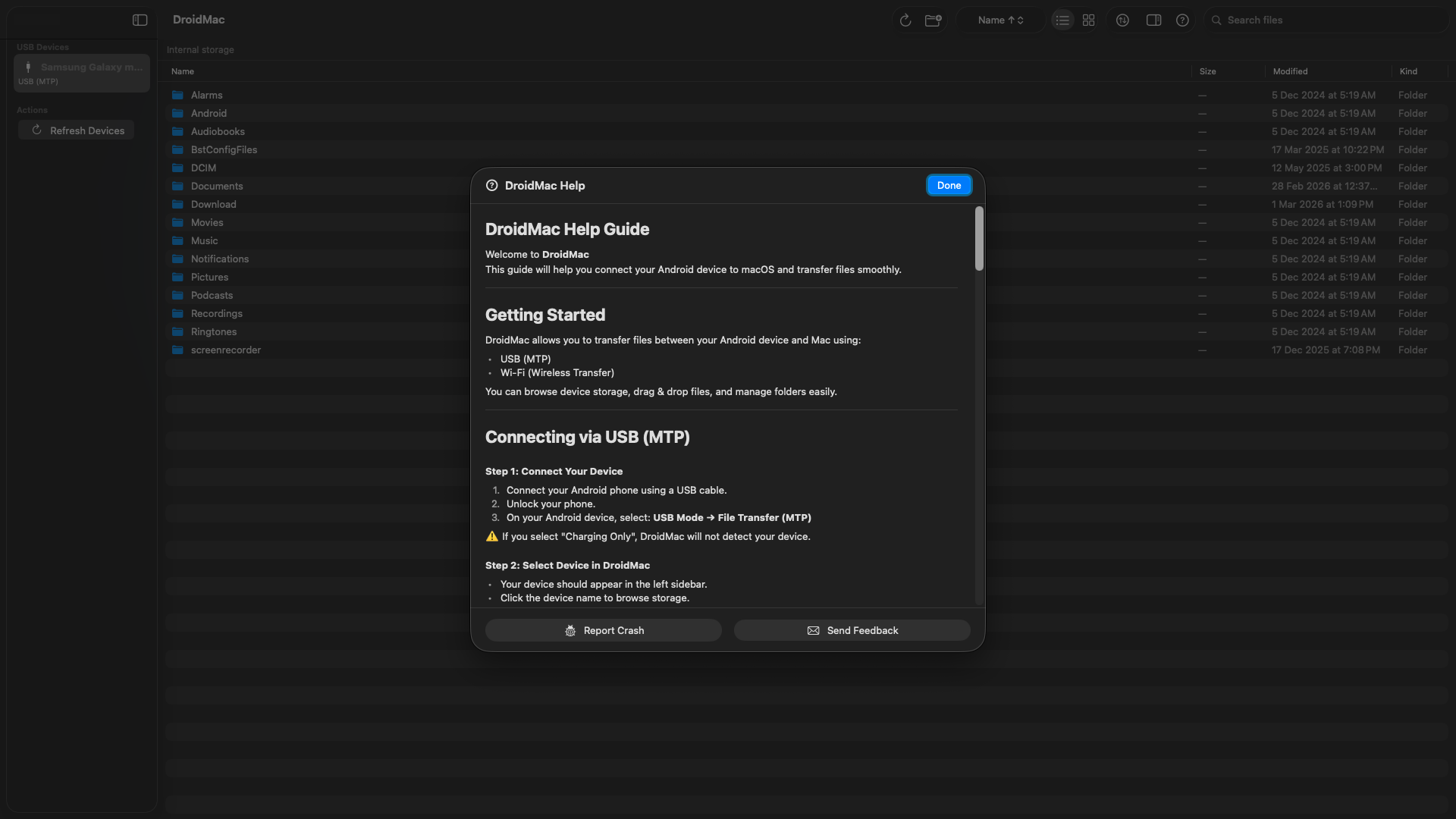
Still have questions? Contact support